WordPress 404 Errors in Search Console Like /wp-content/*: Where They Come From
Addresses like /wp-content/* and /wp-admin/* listed as 404s in Search Console? They come from WordPress's speculative loading. Here is what Google says about them, and when to act.
In this article
- Where do these addresses come from?
- Why does Google report these WordPress 404 errors?
- Do they hurt your site?
- What should you do?
- 1. Usually the best choice: ignore them
- 2. Do not block them in robots.txt
- 3. If you want a clean report: turn the feature off
- How do you know your site carries these rules?
- Frequently asked questions
- Does seeing them mean my site was hacked?
- Should I redirect them with a 301?
- Do they use up Google's crawling of my site?
- In short
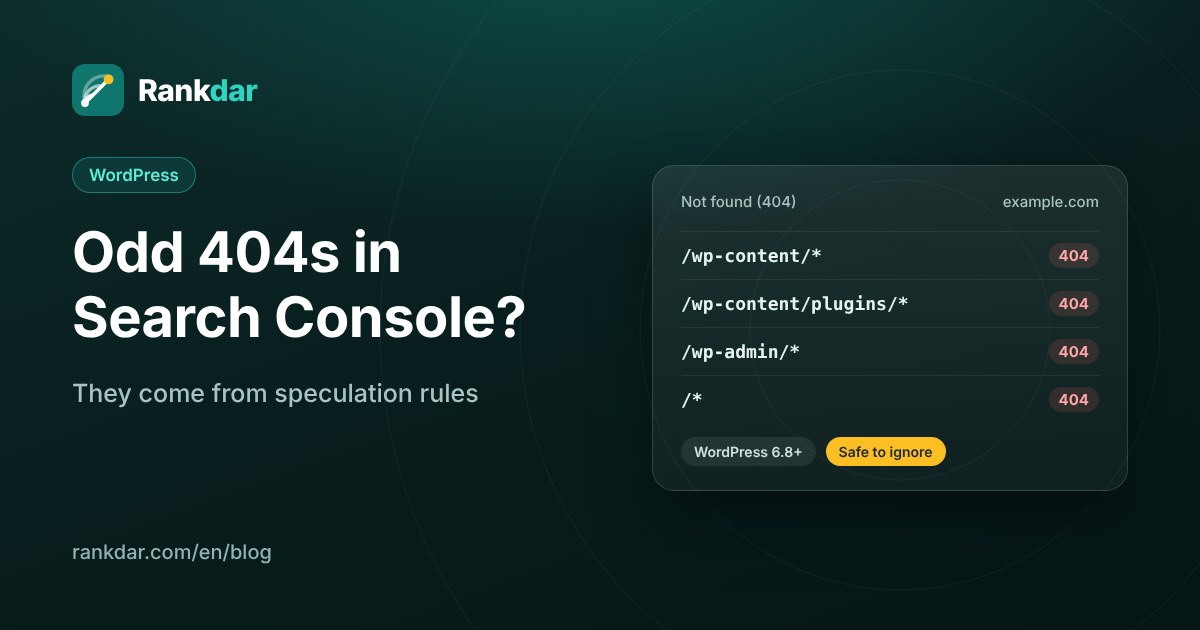
You open the Pages report in Google Search Console and find, under "Not found (404)", addresses that look like no page on your site: /wp-content/*, /wp-admin/*, /wp-*.php, even a bare /*. You are not alone: these WordPress 404 errors show up on many sites. These are not broken links on your site and nobody has hacked it: they come from a feature WordPress added to make your site faster. This article explains where they come from, what Google says about them, and when you need to do anything.
Where do these addresses come from?
Since version 6.8, released in April 2025, WordPress adds what are called speculation rules to your pages. They tell the browser: when the visitor starts to press an internal link, start loading the next page right away, so it opens faster. WordPress adds them by itself at the bottom of every page for visitors who are not signed in, as long as your permalinks use a structure other than the default one.
In the page's code they look like this (shortened):
<script type="speculationrules">
{"prefetch":[{"source":"document","where":{"and":[
  {"href_matches":"/*"},
  {"not":{"href_matches":["/wp-*.php","/wp-admin/*",
    "/wp-content/uploads/*","/wp-content/*",
    "/wp-content/plugins/*","/wp-content/themes/your-theme/*"]}}
]},"eagerness":"conservative"}]}
</script>
These are not links but patterns: the * means "anything". The rule tells the browser to load ahead any page of the site except the admin area, the theme and plugin files and the uploaded images.
Why does Google report these WordPress 404 errors?
Googlebot visits your site like any signed-out visitor, so it sees these rules on your pages. And Google tends to try text that looks like an address, even inside code on the page. It reads /wp-content/* as an address, tries to visit it, your site answers 404 because no such page exists, and the address shows up in Search Console among the pages not found.
Complaints about these errors appeared on the WordPress support forum in December 2025. There, a developer on Google's Chrome team passed on from Google's Search team that they try to fetch what looks like an address, that they have no plans to change this, and that these 404s can be ignored.
Do they hurt your site?
No. Search Console's help page says 404 errors do not harm your site's indexing or ranking, and that you can safely ignore them if you are sure the addresses should not exist on your site. That is exactly the case here: there is no page called /wp-content/*, and there should not be. They are noise in the report, nothing more. If your site does not show up on Google at all, the cause is elsewhere, and this plan covers it.
What matters is telling them apart from real 404s that deserve a fix, such as a page you deleted that other sites still link to, or an internal link with a typo. If you deleted a page and want it out of Google quickly, see the Removals tool guide. That is easy: the addresses that come from speculation rules contain a *.
What should you do?
1. Usually the best choice: ignore them
Leave them in the report; there is no need to ask Search Console to validate a fix. This way you keep the speed the feature gives your visitors as they move between your pages.
2. Do not block them in robots.txt
Blocking /wp-content/ in robots.txt may look like a quick fix, but it is a mistake: that folder holds the CSS, JavaScript and images your theme needs, and if Google cannot read them it will not see your pages the way your visitors do.
3. If you want a clean report: turn the feature off
A developer can turn speculative loading off with one line in a child theme's functions.php or in a small plugin:
add_filter( 'wp_speculation_rules_configuration', '__return_null' );Two things to watch: it is the value null that turns the feature off, while __return_false does not. And if the Speculative Loading plugin is active on your site, it sets these rules itself, so deactivate it first. Remember that turning it off means your pages will no longer load ahead for your visitors.
How do you know your site carries these rules?
Open any page of your site in a private window, so you are not signed in, view the page source and search for speculationrules. Or audit your site with Site Health in Rankdar: the audit adds a note on the home page when it finds these rules, with the patterns that may show up as 404s, so you do not spend time on them.
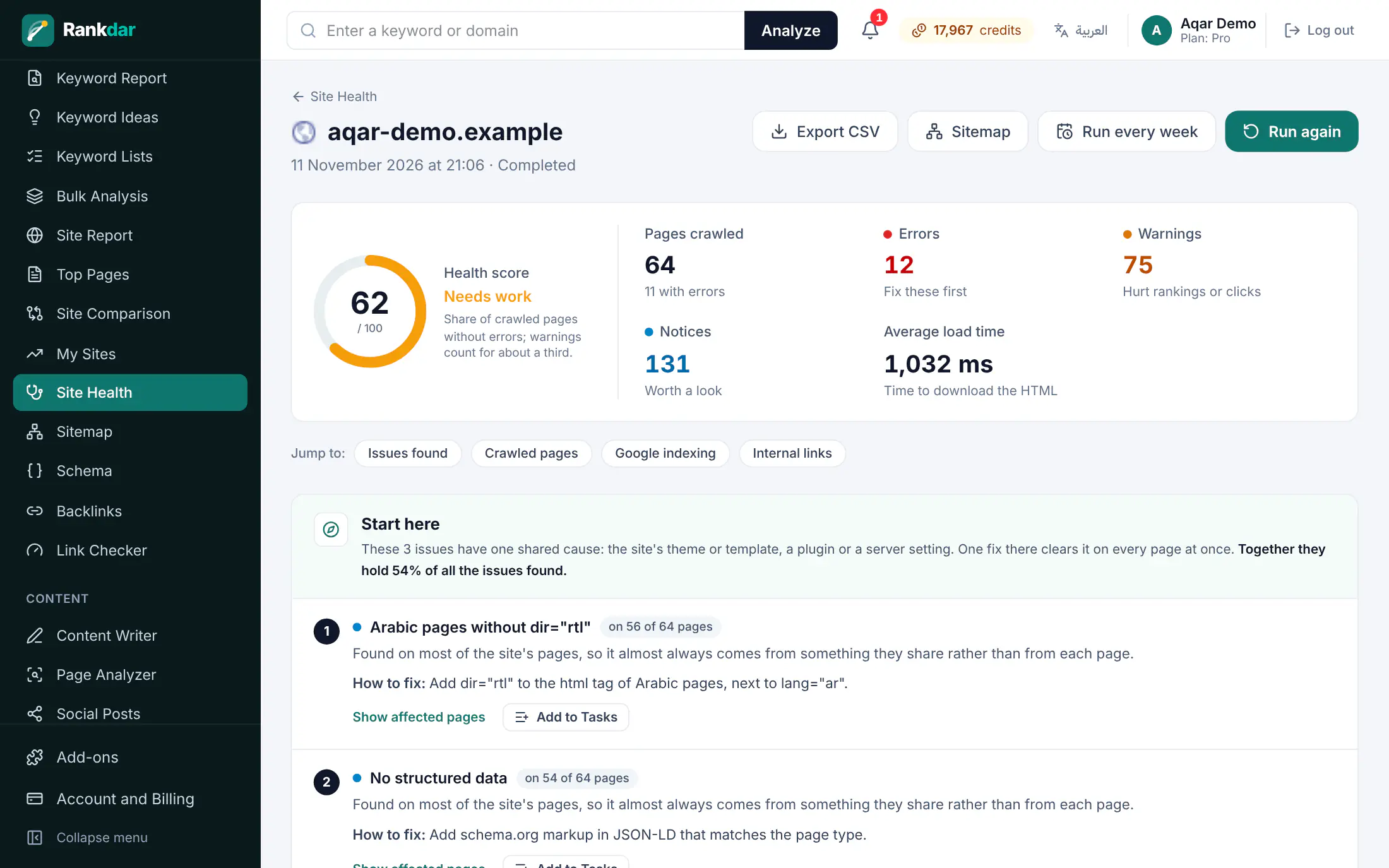
Site Health in Rankdar: errors and warnings ranked by impact, with how to fix each issue (sample data for a fictional site).
Frequently asked questions
Does seeing them mean my site was hacked?
No. WordPress writes these addresses itself, and they appear on any site running version 6.8 or later unless the feature is turned off.
Should I redirect them with a 301?
No. They are not real pages, and a redirect helps neither your visitors nor Google.
Do they use up Google's crawling of my site?
There are few of them and they do not change: the same patterns appear on every page of the site, not a new address for each page. So on most sites they are nothing to worry about.
In short
If Search Console shows 404s for addresses with a * in them, such as /wp-content/*, they come from WordPress's speculation rules and do not hurt your site. Leave them, do not block /wp-content/ in robots.txt, and spend your time on the real 404s. Try the free Site Health audit to see which issues really deserve a fix.
- #WordPress
- #Search Console
- #Technical SEO